
Wiki mirrorView source
The information in this page is updated in accordance with firmware version RUTX_R_00.07.22.1.
Summary
This page is an overview of the Administration section of RUTX11 devices.
General
The General section is used to set up some of device managerial parameters, such as changing device name. For more information on the General section, refer to figure and table below.
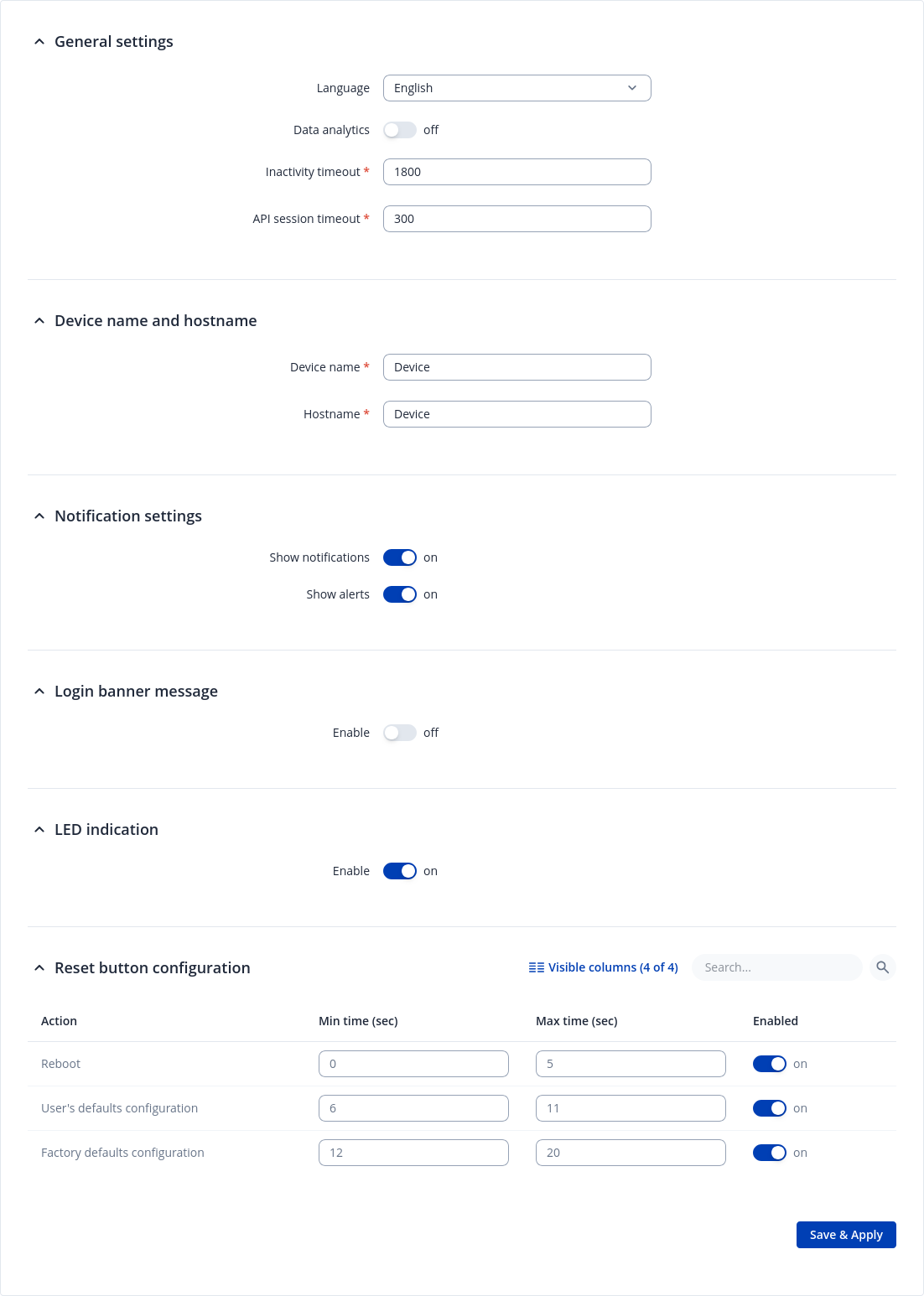
| Field | Value | Description | General Settings | Device name and hostname | Notification settings | Login banner message | LED indication | Reset Button Configuration | ||||||||||||
|---|---|---|---|---|---|---|---|---|---|---|---|---|---|---|---|---|---|---|---|---|
| Language | English | Turkish* | Spanish* | Portuguese* | German* | Japanese* | Ukrainian* | Polish*; default: English | Changes the router's WebUI language. | ||||||||||||||||||
| Data Analytics | Off | On; default: Off | Enables the collection of data, which is used to improve the quality and user experience of our products. It includes sending information about the device and the usage of the Web interface. The data is collected in compliance with the Privacy policy. | ||||||||||||||||||
| Inactivity timeout | integer; default: 1800 | Time in seconds until the user is automatically logged out of the Web interface due to inactivity. | ||||||||||||||||||
| API session timeout | integer; default: 300 | Time in seconds until the user is automatically logged out due to no connection to the device. | ||||||||||||||||||
| Device name | string; default: RUTX11 | Device model name. | ||||||||||||||||||
| Hostname | string; default: RUTX11 | Device hostname. This can be used for communication with other LAN hosts. | ||||||||||||||||||
| Show notifications | off | on; default: on | Notifications are brief, page specific messages or warnings that provide information about functionalities and statuses. | ||||||||||||||||||
| Show alerts | off | on; default: on | Alerts are high-importance system or page messages that usually require immediate attention and action. They may inform about updates, expiring functionalities, and similar events. | ||||||||||||||||||
| Enable | off | on; default: on | This login banner message appears during the login process. It helps to ensure that all users are aware of the rules and guidelines they must follow before accessing the system. | ||||||||||||||||||
| Message title | string; default: Unauthorized access prohibited | Login banner message title. | ||||||||||||||||||
| Message text | string; default: This system is for authorized use only. All activities on this system are logged and monitored. By using this system, you consent to such monitoring. Unauthorized access or misuse may result in disciplinary action, civil and criminal penalties, or both. If you are not authorized to use this system, disconnect immediately. | Login banner message text | ||||||||||||||||||
| Enable | off | on; default: on | Turns on/off LEDs indication. | ||||||||||||||||||
| Min time | integer [0..60]; default: none | Minimum time (in seconds) the button needs to be held to perform an action. | ||||||||||||||||||
| Max time | integer [1..60]; default: none | Maximum time (in seconds) the button can be held to perform an action, after which no action will be performed. |
* Different language packages can be downloaded separately from the System → Package Manager page.
Date & Time
Summary
Network Time Protocol (NTP) is a networking protocol for clock synchronization between computer
systems over packet-switched, variable-latency data networks. This chapter is an overview of the NTP section for RUTX11 devices.
General
The Time Synchronization section lets you select time zone, enable GPS synchronization and synchronize the time.
The figure below is an example of the Time Synchronization section and the table below
provides information about the fields contained in that section:
| Field | Value | Description |
|---|---|---|
| Current system time | time; default: none | Current local time of the device. |
| Sync with browser | -(interactive button) | Click to synchronize device time and time zone to browsers, if your device time or time zone is not correct. |
| Time zone | time zone; default: UTC | The device will sync time in accordance with the selected time zone. |
| GPS Synchronization | off | on; default: off | Enables periodic time synchronization for the system using the GPS module which does not require an Internet connection. |
| GPS time update interval | period; default: Every 24 hours | How often the device will update the time using the GPS module. |
NTP
This section is used to configure NTP client, server and time servers.
Time Synchronization
This section is used to configure the device's time settings.
| Field | Value | Description |
|---|---|---|
| Enable NTP Client | off | on; default: on | Turns NTP on or off. |
| Save time to flash | off | on; default: off | Saves last synchronized time to flash memory. |
| Force Servers | off | on; default: off | Forces unreliable NTP servers. |
| Update interval (in seconds) | integer; default: 86400 | How often the device will update the time. |
| Offset frequency | integer; default: 0 | Adjusts the minor drift of the clock so that it will run more accurately. |
| Count of time synchronizations | integer; default: none | The amount of times the device will perform time synchronizations. Leave empty in order to set to infinite. |
| Operator Station Synchronization | off | on; default: on | Synchronizes time with mobile operator's base station. |
| Timezone Synchronization | off | on; default: off | Sync time data with mobile operator. |
| Count of failed NTP requests | unsigned integer; default: none | How many times should NTP client fail before permanently switching to operator station synchronization (empty value - 5). |
Time Servers
This section is used to specify which time servers the device will use for time synchronization. To add more time servers to the list, click the 'Add' button.
| Field | Value | Description |
|---|---|---|
| Hostname | ip | url; default: time[x].google.com | NTP servers that this device uses to sync time. |
NTP Server
The device can also act as an NTP Server, providing clock synchronization to other devices in the network. From this section you can turn this feature on or off:
NTPD
The NTPD program is an operating system daemon that synchronizes the system clock to remote NTP time servers or local reference clocks. NTPD includes the ability to use this to keep your clock in sync and will run more accurately than a clock on a device not running NTPD. NTPD will also use several servers to improve accuracy. It is a complete implementation of NTP version 4 defined by RFC-5905, but also retains compatible with version 3 defined by RFC-1305 and versions 1 and 2, defined by RFC-1059 and RFC-1119, respectively.
Note: NTPD is additional software that can be installed from the System → Package Manager page.
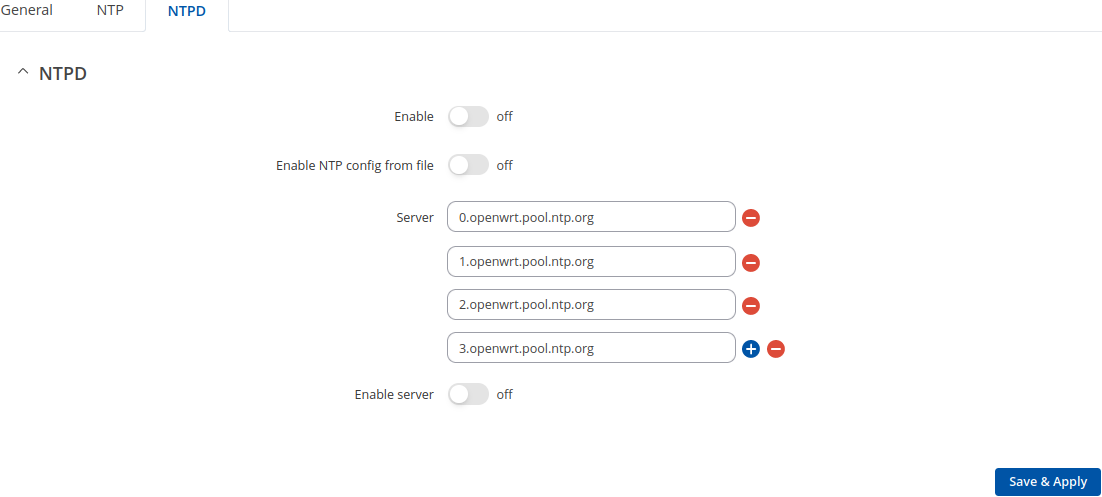
| Field | Value | Description |
|---|---|---|
| Enable NTPD | off | on; default: off | Turns NTPD on or off. |
| Enable NTP config from file | off | on; default: off | Run NTPD with uploaded configuration file. |
| NTP configuration file | .conf file; default: none | Upload a custom configuration file. |
| Server | ip | url; default: 0.openwrt.pool.ntp.org | NTP servers that this device uses to sync time. |
| Enable Server | off | on; default: off | Enables NTPD server to make the router act as an NTP server so that it can provide time synchronization services for other network devices. |
User Settings
Change Password
The User configuration section is used to change the password of the current user.
Password Policy
The Password policy section is used to configure password policy and password expiration settings.
| Field | Value | Description |
|---|---|---|
| Minimum password length | integer; default: 8 | Minimum password length is from 8 to 64 characters. |
| Digits | off | on; default: on | Password must contain at least one digit (0-9). |
| Upper / lower case characters | off | on; default: on | Password must contain at least one upper and lower case letter (A-Z, a-z). |
| Special characters | off | on; default: on | Password must contain at least one special character (~`! @#$%^&*()-_+={}[]|\;:"<>,./?). |
| Password expiration | off | on; default: off | A new password will need to be created once the current one reaches its expiration date. The password expiration period can be set from 1 to 365 days. |
System Users
Summary
The System Users page is used to add new user accounts that can access the device with different user credentials than the default ones. The newly added users can be assigned to one of two groups, either of which can be modified to limit WebUI read/write access rights for users belonging to each specific group.
This page is unrelated to SSH users. By default, there is one SSH user named "root" and it shares the same password as the default WebUI user named "admin".
This manual page provides an overview of the Users page in RUTX11 devices.
Groups
The Groups section lists available user groups of which there are three:
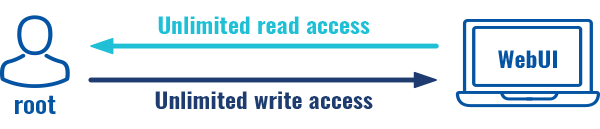
- root - highest level of authority. Key elements that define this group:
- has unlimited read/write access;
- additional users cannot be added to this group;
- access rights for this group cannot be modified.
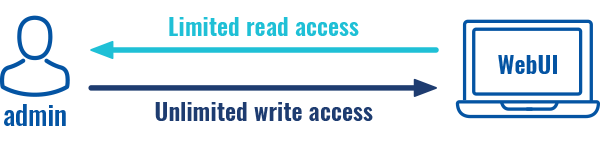
- admin - second highest level of authority. Key elements that define this group:
- limited read access; by default, users belonging to this group cannot view these pages:
- System → Administration → Users Settings → System Users
- System → Administration → Profiles
- System → Maintenance → Backup
- System → Firmware
- System → Maintenance → CLI
- System → Setup Wizard
- System → Maintenance → Custom Scripts
- limited write access; by default, users belonging to this group cannot view these pages:
- System → Administration → Users Settings → System Users
- System → Maintenance → Backup
- System → Firmware
- System → Maintenance → CLI
- System → Setup Wizard
- System → Maintenance → Custom Scripts
- System → Administration → Access Control → General
- System → Administration → Profiles
- access rights can be modified.
- limited read access; by default, users belonging to this group cannot view these pages:
- user - lowest level of authority. Key elements that define this group:
- no write access;
- limited read access; by default, users belonging to this group cannot view these pages:
- System → Administration → Users Settings → System Users
- System → Firmware
- System → Maintenance → Backup
- System → Administration → Access Control
- System → Maintenance → CLI
- System → Maintenance → Custom Scripts
- System → Maintenance → Troubleshoot
- System → Package Manager
- Network
- System → Setup Wizard
- Status → Wireless → Channel Analysis
- Services → Hotspot → General → Userscripts
- Services → Mobile Utilitites → Messages → Send Messages
- access rights can be modified.
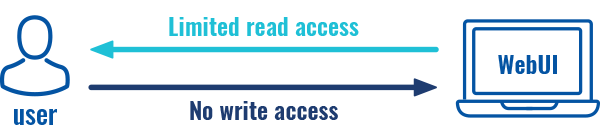
Additional note: you can view and/or edit settings for each group by clicking the 'Edit' button next to them. More on information on how to edit group access settings is located in the following section of this manual page.
Group Settings (edit group)
A group's parameters can be set in its Group Settings page. To access the Groups Settings page, click the 'Edit' button next to the group's name. Below is an example of the Group Settings section:
| Field | Value | Description |
|---|---|---|
| Hide sensitive information | off | on; default: on | Enabling this option will restrict this user group from viewing sensitive information, such as passwords, private keys and related data. Editing rights for sensitive information fields will remain available, if applicable. |
| Write action | Allow | Deny; default: Allow | Specifies whether to deny or allow write access for users belonging the group. |
| Write access | path(s) to page(s); default:
| Controls the ability of users to change and execute the contents (e.g. Network > Lan). |
| Read action | Allow | Deny; default: Deny | Specifies whether to deny or allow read access for users belonging the group. |
| Read access | path(s) to page(s); default: in the picture above | Path(s) to the page(s) to which the selected "Read action" will be applied. Click the plus symbol to add more entries. |
The easiest way to master the syntax is to navigate to page that you want to generate a path for and the copy the path from the URL of that page.
For example, to specify the path to the Network → Mobile page, navigate to the page, copy the page's URL address starting from the symbol "#" and paste it into one of the access fields:
However, the VPN window contains links to many different types of VPN pages. If you want to specify only one of them, you can do it as well. For example, to to specify the path to the IPsec page, add "/ipsec" to the path string:
services/vpn
/ipsec
An asterisk (*) in the path string means that the every page from that point on is included in that path. For example, to generate a path that includes pages in the Services menu tab:
services/
*
Or to simply include everything in the entire WebUI (if this path is combined with Read action: Deny, users from that group will not be able to login to the WebUI):
*
Users
The Users section lists all created users and provides the possibility to change their passwords and the group they belong to (with the exception of the default user "admin" which always belongs to the root group).
By default, there is only one user called "admin":
Admin user
| Field | Value | Description |
|---|---|---|
| Username | admin; default: admin | Displays the user's name. |
| Current password | string; default: none | Enter your current user password. |
| New password | string; default: none | |
| Confirm new password | string; default: none | Repeat the new password. |
| Group | root; default: root | The group to which the user belongs. |
| Enable SSH access | off | on; default: off | Enables SSH access (only for 'root' users). |
User Settings (edit user)
Each user's password and group parameters can be set in their User Settings pages. To access the User Settings page, click the 'Edit' button next to the user's name.
However, you may want to add a new user at first. This can be done from the Add New User section below:
- create a username;
- create a password for the user (must contain at least 8 characters, including at least one upper case letter and one digit);
- click the 'Add' button;
- click the 'Edit' next to newly added user.
Below is an example of a newly added user's settings page:
| Field | Value | Description |
|---|---|---|
| Username | string; default: none | Displays the user's name. |
| New password | string; default: none | |
| Confirm new password | string; default: none | Repeat the new password. |
| Group | admin | user; default: user | The group to which the user belongs. |
| Enable SSH access | off | on; default: off | Enables SSH access (only for 'root' users). |
Add New User
The Add New User section is used to create additional users that can access the WebUI. After a new user is added, it will appear in the Users section.
| Field | Value | Description |
|---|---|---|
| Username | string; default: none | A custom name for the new user. |
| Password | string; default: none |
Access Control
General
The Access Control page is used to manage remote and local access to device.
Important: turning on remote access leaves your device vulnerable to external attackers. Make sure you use a strong password.
SSH
SSH
| Field | Value | Description |
|---|---|---|
| Enable SSH access | off | on; default: on | Turns SSH access from the local network (LAN) on or off. |
| Remote SSH access | off | on; default: off | Turns SSH access from remote networks (WAN) on or off. |
| Session timeout | integer; default: 1800 | Time in seconds until the SSH session is automatically terminated due to inactivity. |
| Port (LAN) | integer [0..65535]; default: 22 | Selects which port to use for SSH access from local network. |
| Port (WAN) | integer [0..65535]; default: 22 | Selects which port to use for SSH access from remote networks. |
| Authentication type | Password | Key-based only | Use both; default: Password |
|
| Public keys | -(input field) | Public keys for ssh key-based authentication. Each individual key must be specified on a new line. |
HTTP
| Field | Value | Description |
|---|---|---|
| Enable HTTP access | off | on; default: on | Turns HTTP access from the local network (LAN) to the device WebUI on or off. |
| Enable remote HTTP access | off | on; default: off | Turns HTTP access from remote networks (WAN) to the device WebUI on or off. |
| HTTP Port (LAN) | integer [0..65535]; default: 80 | Selects which port to use for HTTP access from local network. |
| HTTP Port (WAN) | integer [0..65535]; default: 80 | Selects which port to use for HTTP access from remote networks. |
| Ignore private IPs on public interface | off | on; default: on | Prevent access from private (RFC1918) IPs on an interface if it has an public IP address. |
| Enable JSON-RPC | off | on; default: off | Turns JSON-RPC access on or off. Note: JSON-RPC is additional software that can be installed from the System → Package Manager page. |
HTTPS
| Field | Value | Description |
|---|---|---|
| Enable HTTPS access | off | on; default: on | Turns HTTPS access from the local network (LAN) to the device WebUI on or off. |
| Redirect to HTTPS | off | on; default: on | Redirects connection attempts from HTTP to HTTPS. |
| Enable remote HTTPS access | off | on; default: off | Turns HTTPS access from remote networks (WAN) to the device WebUI on or off. |
| Enable Basic Authentication | off | on; default: off | Enable HTTP Basic Authentication for the WebUI. Requires HTTPS and automatic redirect to be active for secure login. |
| HTTPS Port (LAN) | integer [0..65535]; default: 443 | Selects which port to use for HTTPS access from local network. |
| HTTPS Port (WAN) | integer [0..65535]; default: 443 | Selects which port to use for HTTPS access from remote networks. |
| Ignore private IPs on public interface | off | on; default: on | Prevent access from private (RFC1918) IPs on an interface if it has an public IP address. |
| Enable JSON-RPC | off | on; default: off | Turns JSON-RPC access on or off. Note: JSON-RPC is additional software that can be installed from the System → Package Manager page. |
| Certificate files from device | off | on; default: on | Choose this option if you want to select certificate files from device. Certificate files can be generated in Certificates section. |
| Store key in TPM | off | on; default: on | When enabled, key will be stored in TPM2 secure storage if space is available. Note: this option is only available on devices with TPM support. |
| Server certificate | .crt; default: uhttpd.crt | Server certificate file. |
| Server key | .key; default: uhttpd.key | Server key file. |
| Certificate file | .crt; default: uhttpd.crt | Download certificate file from device. Used for browsers to reach HTTPS connection. |
CLI
| Field | Value | Description |
|---|---|---|
| Enable CLI | off | on; default: on | Turns CLI access from the local network (LAN) on or off. |
| Enable remote CLI | off | on; default: off | Turns CLI access from remote networks (WAN) on or off. |
| Port range (LAN) | range of integers [0..65534]-[1..65535]; default: 4200-4220 | Selects which ports to use for CLI access from local network. |
| Port range (WAN) | range of integers [0..65534]-[1..65535]; default: 4200-4220 | Selects which ports to use for CLI access from remote networks. |
| Shell limit | integer [1..10]; default: 5 | Maximum number of active CLI connections. |
Telnet
Note: Telnet is additional software that can be installed from the System → Package Manager page.
| Field | Value | Description |
|---|---|---|
| Enable Telnet access | off | on; default: on | Turns Telnet access from the local network (LAN) on or off. |
| Enable remote Telnet access | off | on; default: off | Turns Telnet access from remote networks (WAN) on or off. |
| Session timeout | integer; default: 1800 | Time in seconds until the SSH session is automatically terminated due to inactivity. |
| Port (LAN) | integer [0..65535]; default: 23 | Port to listen for Telnet access from local network. |
| Port (WAN) | integer [0..65535]; default: 23 | Port to listen for Telnet access from remote networks. |
PAM
Note: PAM is additional software that can be installed from the System → Package Manager page.
Modify PAM Auth
| Field | Value | Description |
|---|---|---|
| Enable | off | on; default: on | Turns the PAM auth on or off. |
| Module | TACACS+ | Radius | Local; default: Local | Specifies the PAM module that implements the service. |
| Type | Required | Requisite | Sufficient | Optional; default: Optional | Determines the continuation or failure behavior for the module |
| WebUI PAM auth option: Enable for all users | off | on; default: off | Turn on PAM authentication for all users. It will allow login with users that are not created on the device. |
| WebUI PAM auth option: Select users | -(list) | Select users for PAM authentication. |
| WebUI PAM auth option: Default user group | -(list) | Specifies the default user group if parameter priv-lvl is not sent. Selecting 'None' will deny users without this parameter. |
| TACACS+/Radius: Enable for all users | off | on; default: off | Turn on PAM authentication for all users. It will allow login with users that are not created on the device. |
| Radius: Require Message-Authenticator | off | on; default: on | Require and validate Message-Authenticator RADIUS attribute on Access-Request replies. |
| TACACS+/Radius: Server | ip4 | ip6; default: none | The IP address of the RADIUS server. |
| Radius: Secret | string; default: none | RADIUS shared secret. |
| TACACS+: Key | string; default: none | TACACS+ server key. |
| TACACS+/Radius: Port | integer [0..65535]; default: 49/1812 | RADIUS server authentication port. |
| Radius: Timeout | integer [3..10]; default: 3 | Timeout in seconds waiting for RADIUS server reply. |
Security
The Security tab provides the possibility to enable/disable blocking IP's service and delete blocked devices from the list.
Login Attempts
| Field | Value | Description |
|---|---|---|
| Source | IP address | Shows the IP address from which the connection failed. |
| Destination | IP address | Shows yours device IP adress |
| Port (protocol) | Port number | Shows the port number from which the connection failed. |
| Status | Attempt count | Blocked | Shows the number of failed attempts to connect to device. Indicates whether the source address is blocked or not. |
| Reset | Check box | Allows you to select multiple IP addresses. |
| Actions | -(interactive button) | Allows you to select multiple IP addresses. |
| Unblock all | -(interactive button) | Deletes instance. |
| Unblock selected | -(interactive button) | Unblocks selected source adresses from the list. |
IP Block Settings
IP Block Settings can be found by pressing 'Settings' button under security tab:
| Field | Value | Description |
|---|---|---|
| Enable | off | on; default: on | Enable or disable blocking IP's if they have reached the set amount of failed times. |
| Type | Timed blocking | Permanent blocking; default: Timed blocking | You can choose an option of a blocking type. |
| Fail count | integer [1..1000]; default: 10 | An amount of times IP address can try to access SSH or WebUI before being blocked. |
| Clean after reboot | off | on; default: off | If enabled, blocked loging attempts list will be cleared on device reboot. |
Sessions
The Sessions tab provides an overview and management interface for all currently active user sessions on the system. It helps administrators monitor access and control who is connected in real time.
| Field | Description | |
|---|---|---|
| Username | The account currently logged in. | |
| IP Address | The device/network location used for access. | |
| Date | The login timestamp of the session. | |
| Type | The access method (e.g., Web UI, SSH..) | |
| Actions | The Terminate option allows you to immediately end selected sessions, useful for security or administrative control. |
Recipients
The Recipients section is used to configure phone groups and email
users, which can later be used along with SMS or email related
services, such as Events Reporting.
Phone Groups
A Phone Group is a collection of phone numbers that can be used as the recipient in SMS & call related services instead of specifying every number individually. The phone group list is empty by default thus, you must first add at least one new group before you can add phone numbers to it. To create and begin editing a phone group, follow these steps:
- Enter a custom name for the phone group into the 'Name' field.
- Click the 'Add' button.
After clicking 'Edit' you should be redirected to that phone group's configuration page where you can start adding phone numbers to it.
| Field | Value | Description |
|---|---|---|
| Group name | string; default: none | Name of this phone numbers group. |
| Phone number | string; default: none | A phone number entry for this group. Numbers that consist of 0-9*+# characters are accepted. Click the plus symbol to add more entries. |
Email Users
When email related services (such as Events Reporting) are used, the device logs in to the specified email account and reads the inbox (e.g., Email to SMS) or sends out a message (e.g., SMS to Email) depending on the configured service. In this context, an Email Account is an configuration instance that contains the necessary data required in order to log into an email account.
The email accounts list is empty by default thus, you must first add at least one new account before you can configure it. To create and begin editing an email account, follow these steps:
- Enter a custom name for the email account into the 'Name' field.
- Click the 'Add' button.
After clicking 'Add' you should be redirected to that email account's settings page where you can start configuring the account.
| Field | Value | Description |
|---|---|---|
| Secure connection | off | on; default: off | Use if your SMTP server supports TLS or SSL encryption. |
| SMTP server | string; default: none | Name of the email service provider's SMTP server. |
| SMTP server port | integer [0..65535]; default: none | Port of the email service provider's SMTP server. |
| Credentials | off | on; default: off | This options allows you to set username and password of email account. |
| Username | string; default: none | Username for authentication on SMTP (Simple Mail Transfer Protocol) server. All characters are allowed except `' and space. |
| Password | string; default: none | Password for authentication on SMTP (Simple Mail Transfer Protocol) server. All characters are allowed except `' and space. Maximum length of value is 128. |
| Sender's email address | string; default: none | An address that will be used to send your email from. Allowed characters (a-zA-Z0-9._%+-@). |
| Do not verify authenticity | off | on; default: off | When enabled peer's certificate authenticity will not be verified. |
| Server's CA file | - (interactive button) | Upload server's CA file. |
| Send test email | - (interactive button) | Sends an email based on the current configuration. This is used to test whether the configuration works as intended. |
Certificates
The Certificates page is used for convenient TLS certificate and key generation and management. Generated files can be exported and used on other machines or locally on this device with functions that use TLS/SSL, such as MQTT, OpenVPN, IPsec and others.
Certificate Generation
The Create function provides the possibility to generate TLS certificates required for secure authentication and communication encryption used by some of the devices services.
There are seven distinct generation methods (denoted by the selected 'File Type').
- Simple - generates and signs a set of 2048 bit certificate and key files that include:
- Certificate Authority (CA)
- Server certificate & key
- Client certificate & key
- DH Parameters
- CA - generates a Certificate Authority (CA) file. A CA is a type of certificate file that certifies the ownership of a public key by the named subject of the certificate. In other words, it assures clients that they are connecting to a trusted server and vice versa.
- Server - generates a server certificate and key. A server certificate validates a server's identity to connecting clients, while a key is responsible for encryption.
- Client - generates a client certificate and key. A client certificate validates a client's identity to the server that it's connecting to, while a key is responsible for encryption.
- DH Parameters - generates a Diffie-Hellman (DH) parameters file. DH parameters are used in symmetric encryption to protect and define how OpenSSL key exchange is performed.
- Let's encrypt - generates SSL certificate.
- SCEP - generates SCEP (Simple Certificate Enrollment Protocol) certificate.
Generation Parameters
Generating each type of file requires setting some parameters. This section provides an overview for parameters used in Simple and TLS certificate generation.
Simple file parameters
| Field | Value | Description |
|---|---|---|
| Hosts | string; default: none | Appends hostnames to certificates. |
| IP addresses | IPv4 address; default: none | Appends IPv4 addresses to certificates. |
TLS parameters or simply parameters that apply to each (CA, Server, Client, DH) file type are the size and common name of the generated file(s).
| Field | Value | Description |
|---|---|---|
| Key Size | integer; default: 2048 | Generated key size in bits. Larger keys provide more security but take longer to generate. A 2048 bit is the preferred option. |
| Name (CN) | string; default: cert | Common Name (CN), aka Fully Qualified Domain Name (FQDN) is a parameter that defines the name of the certificate. It should be chosen with care as it is not only used for easier management. For example, the Common Name should typically hostname of the server. It may also be used to differentiate clients in order to apply client-specific settings. |
Subject information is not mandatory but can be used as user-friendly way to identify the ownership of certificate files by including such information as the owner's location and company name.
The Sign the certificate slider control whether the certificate will be signed automatically or manually after the generation is complete.
| Field | Value | Description |
|---|---|---|
| Days Valid | integer; default: 3650 | Length of the signature's validity. |
| CA File Name | filename; default: none | Selects which CA file will be used to sign the generated certificate. |
| CA key | filename; default: none | Selects which CA key file will be used to sign the generated certificate. |
| Delete Signing Request | off | on; default: off | Generation creates additional 'signing request' files (which appear under the Certificate Manager tab) that are later used to sign the generated certificates. When this option is set to 'on', the device deletes the signing request files after the signing process is complete. |
A Private Key Decryption Password is a parameter used to decrypt private keys protected by a password.
Let's encrypt - This section provides an overview of the parameters used to generate SSL certificates.
| Field | Value | Description |
|---|---|---|
| Domain | domain name; default: none | Hostname that is linked to the device's public IP address. |
| Automatically renew | off | on; default: off | Certificates will be automatically renewed every 60 days. |
SCEP - This section provides an overview of the parameters used to create certificates for the Simple Certificate Enrollment Protocol.
| Field | Value | Description |
|---|---|---|
| Key Size | 512 | 1024 | 2048 | 4096 | ; default: none | Certificate key size. |
| Common name | string; default: none | Common name of the certificate. |
| SCEP server URL | url; default: none | URL of the SCEP server. |
| Challenge | string; default: none | It's recommended to use a high-entropy shared-secret authentication string, such as a base64-encoded key from EAP or DNP3-SA protocols, for the initial SCEP certificate generation. |
Certificate Signing
The Certificate Signing function is used to validate (sign) unsigned certificates.
| Field | Value | Description |
|---|---|---|
| Signed Certificate Name | string; default: none | Name of the signed certificate. |
| Type of Certificate to Sign | Authority | Server | Client; default: Authority | Specifies what type of file will be signed. |
| Certificate Request File | file; default: none | Specifies the signing request file linked to the certificate. |
| Days Valid | integer; default: none | Days until certificate expires. |
| Certificate authority Key | filename; default: none | Selects which CA key file will be used to sign the generated certificate. |
| Delete Signing Request | off | on; default: off | Generation creates additional 'signing request' files (which appear under the Certificate Manager tab) that are later used to sign the generated certificates. When this option is set to 'on', the device deletes the signing request files after the signing process is complete. |
| Hosts | string; default: none | Appends hostnames to certificates. |
| IP addresses | IPv4 address; default: none | Appends IPv4 addresses to certificates. |
| Sign | - (interactive button) | Signs the certificate on click. |
Certificate Import
The Certificate Import function provides the possibility to import certificates and files generated on another machine. To upload such a file simply click 'Browse' and locate the file on your computer, it should then start uploading automatically.
Configure Root CA
The Root CA function is used to add a root CA certificate file to the device. There is a default file already preloaded on the device which will be overwritten by any uploaded file. The certificates must be in .pem format, maximum file size is 10 KB. These certificates are only needed if you want to use HTTPS for your services and the default file should be sufficient in most cases.
Move key to TPM2
The Move key to TPM2 function is used to move key files to TPM chip. Note: this function is only supported in devices with TPM module.
Profiles
Summary
Configuration profiles provide a way to create multiple distinct device configuration sets and apply them to the device based on current user requirements. This chapter is an overview of the Profiles page in RUTX11 devices.
Configuration Profiles
This section displays user defined configuration profiles:
To create a new profile, configure the device in accordance with your needs, go to this page, enter a custom name for the profile and click the 'Add' button. You can also choose to create a profile without any previous configurations. A new profile with the given name will appear in the "configuration profiles" list:
The 'Apply' button applies the adjacent configuration on the device.
Scheduler
The Profile Scheduler provides a possibility to set up a schedule of when the device
should use one profile configuration or another.
Check Profile Scheduler Instance Example to get a better understanding at how Profile Scheduler Instances works.
General Configuration
The General Configuration section is used to enable the Scheduler itself. Created instances won't work unless this option is turned on.
Profile Scheduler Instances
The Profile Scheduler Instances section allows you to create profile Instances
to be enabled during specific time intervals. To add a new Instance click Add button.
Note: new Instance can only be created if there is at least one custom profile created.
Profile Scheduler Instance Configuration
This page is used to configure profile, time and day of selected scheduler instance. Refer to the figure and table below for information on the Profile Scheduler Instance Configuration fields:
| Field | Value | Description | Interval Type: Weekdays | Interval Type: Month Days | ||||
|---|---|---|---|---|---|---|---|---|
| Enable | off | on; default: off | Enable selected instance for scheduler. | ||||||
| Profile | profiles; default: none | Select profile which will be applied during specified time interval. | ||||||
| Interval Type | Weekdays | Month Days; default: Weekdays | Depending on your needs select whether you want to configure weekdays or specific month days. | ||||||
| Start Time | time; default: 12:00 | Enter time of the start of interval in which scheduler will switch profiles. | ||||||
| End Time | time; default: 12:00 | Enter time of the end of interval in which scheduler will switch profiles back. | ||||||
| Start Day | Weekday [Monday..Sunday]; default: Sunday | Select a day of the start of interval in which scheduler will switch profiles. | ||||||
| End Day | Weekday [Monday..Sunday]; default: Sunday | Select a day of the end of interval in which scheduler will switch profiles back. | ||||||
| Start Day | Day of month [1..31]; default: 1 | Select a day of the start of interval in which scheduler will switch profiles. | ||||||
| End Day | Day of month [1..31]; default: 1 | Select a day of the end of interval in which scheduler will switch profiles back. | ||||||
| Force last day | off | on; default: off | Force intervals to accept last day of month as valid option if selected day doesn't exist in ongoing month. |
Profile Scheduler Instance Example
Scheduler will use profile instance if it is enabled and it's time
interval matches device's date, otherwise default profile will be used.
Example - we have 3 profiles in total:
- default
- Profile A
- Profile B
We create profile instances for Profiles A and B:
- Profile A: 08:00 - 11:00
- Profile B: 13:00 - 20:00
During 11:00 - 13:00 and 20:00 - 08:00 default profile will be used.
Storage Memory Expansion
USB
The Storage Memory Expansion function provides the possibility to expand the device's flash memory with a USB mass storage device.
Memory Expansion
You can expand the flash memory of this device with a USB Mass Storage Device (MSD) and use the extra memory to install additional software packages. This section provides instruction on how to do just that. However, there are a few prerequisites and warnings to take note of before using memory expansion.
To be eligible for memory expansion, the USB MSD must meet the following restrictions.
- The MSD must be the last one (chronologically) inserted.
- If you are using a USB hub, the target MSD must be the last one attached to the hub.
- No important data on the MSD as it will be wiped during expansion setup!
When expansion is enabled, do not detach the USB device as this will delete the data stored on it. Changes made to the device configuration while expansion was enabled will disappear after it is disabled.
Enabling memory expansion
To successfully expand the flash memory of your device follow the steps described below.
- Attach a USB Mass Storage Device (MSD) to the USB connector on the device and go to the Services → Storage Memory Expansion page.
- Set the 'Enable storage expansion' slider to 'on' and click 'Save & Apply'.

- You will see a pop-up asking for confirmation. Take note that if you continue from this point on:
- your USB device's memory will be wiped and formatted to ext2 format;
- your device's current configuration will be backed up and restored to this point if the USB drive is removed or memory expansion is disabled;
- the entire procedure may take a very long time and includes a reboot at the end; exact time will vary depending on the size of the MSD (larger size will take longer; for example, using a 128 GB drive will take about 2 hours to fully set up, while a 16 GB will only take about 5 minutes).

- If all is in order you should see a 'Formatting MSD...' message on the screen. This indicates that the MSD is being formatted and integrated with the system. This procedure can take a long time and ends with a reboot of the device.
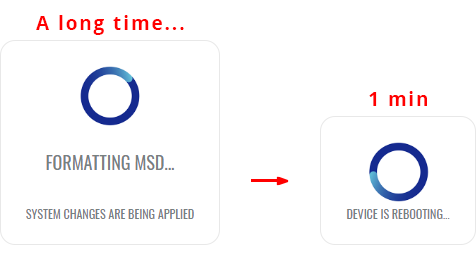
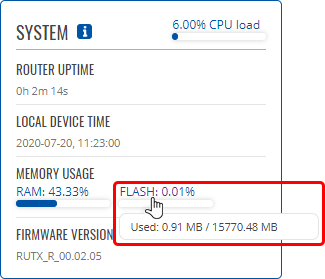
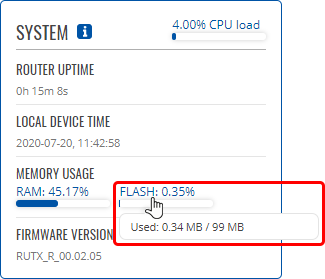
- Your device's flash memory will be expanded once the reboot has finished. In order to check, log in to the WebUI and look to the 'System' widget in the 'Overview' page. Hover your mouse cursor over the 'FLASH' memory indicator; you should see an increase to the device's flash memory.
Disabling memory expansion
To successfully disable memory expansion follow the steps described below.
- Go to the Services → Storage Memory Expansion page.
- Set the 'Enable storage expansion' slider to 'off' and click 'Save & Apply'.

- You will see a pop-up asking for confirmation. Take note that if you continue from this point on:
- your USB device's memory will be wiped and formatted to NTFS format;
- your device's configuration will be restored to the point it was before memory expansion;
- the entire procedure will take up to 2 minutes including a reboot.

- If all is in order you should see a 'Formatting MSD...' message on the screen. This indicates that the MSD is being formatted and detached from the system. This procedure can take up to a couple of minutes and ends with a reboot of the device.
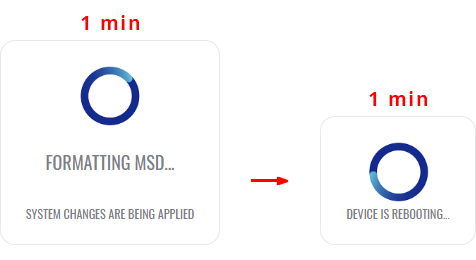
- Your device's flash memory will be restored to normal once the reboot has finished. In order to check, log in to the WebUI and look to the 'System' widget in the 'Overview' page. Hover your mouse cursor over the 'FLASH' memory indicator; you should see your device's flash memory return to its regular size.
SSHFS
SSHFS is a tool, which allows you to mount a remote filesystem (in remote SSH server) to your RUTX11 device using SSH.
This service is safe to use as it authenticates connections and encrypts them.
SSHFS configuration consists of setting up authentication, port and mount information parameters. Below is an example oh the SSHFS configuration page.
| Field | Value | Description |
|---|---|---|
| Status | State | Indicates whether the SSHFS service is active. |
| Enable | off | on; default: off | Turns the SSHFS service on or off. |
| Hostname | domain or IP adress (IPv4, IPv6); default: none | Connection address. |
| Port | integer [0..65535]; default: none | Port for the connection. If left empty a default of 22 will be used. |
| Username | string; default: none | Username of the remote SSH server. |
| Password | string; default: none | Password of the remote SSH server. |
| Mount Point | filepath; default: /sshmount | A folder in the RUTX11 device. Mount points will reside in system's provided folder. Remote file system has to be mounted in /tmp/sshfs/ path and /sshmount directory will be automatically created if does not exist yet. |
| Mount Path | filepath; default: /home/ | Mount path in the remote SSH server. For example, if SSH server is hosted on Ubuntu operating system, the Mount Path could look like this (depending on your needs): /home/username/ |