
Wiki mirrorView source
The information in this page is updated in accordance with 00.07.21.2 firmware version. .
Summary
This article contains instructions on how to set up python on your RUTX, RUTM, and RUTC series devices.
Python is a high-level programming language that enables users to run scripts and extend the device's functionality. The Python3 package can be installed via the WebUI or command line. The base installation can be expanded with optional tools like pip and virtualenv for managing packages and environments.
Note: The user is fully responsible for any actions, code, or scripts run on the device. Only the installation package and basic setup instructions are provided.
Prerequisites
- A RUTX, RUTM or RUTC series device
- At least 20 MB of free storage space for the base Python installation
- additional 15 MB is required for pip
- additional 20 MB is required for virtualenv
- An active internet connection (required only when installing pip and virtualenv)
Note: Actual storage requirements may vary depending on your specific device configuration, installed packages, and other running services. The sizes listed above should be used as general estimates only.
Installation
Installing the Python package
- Log in to the WebUI interface of your device.
- Navigate to System → Package Manager.
- Locate and install the Python3 package.
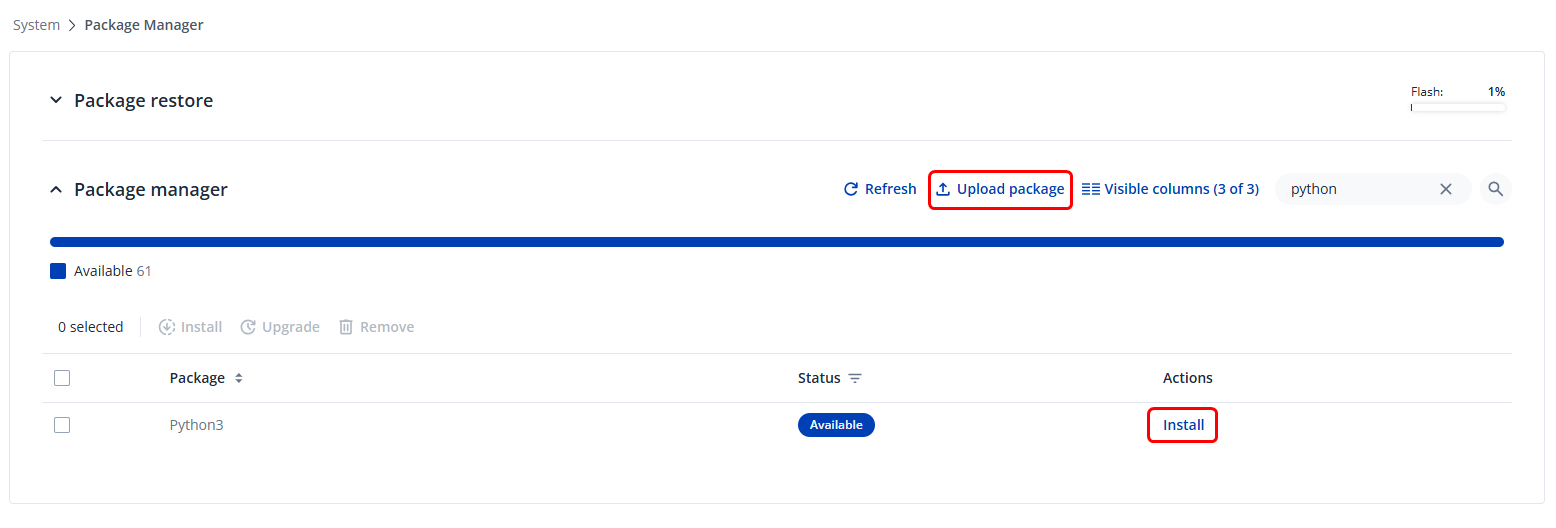
opkg updateopkg install python3Installing PIP
PIP is a tool for installing and managing python packages.
To install pip, connect to your device via SSH or CLI (accessible under System → Maintenance → CLI) and run the following commands:
wget https://bootstrap.pypa.io/get-pip.pypython3 get-pip.py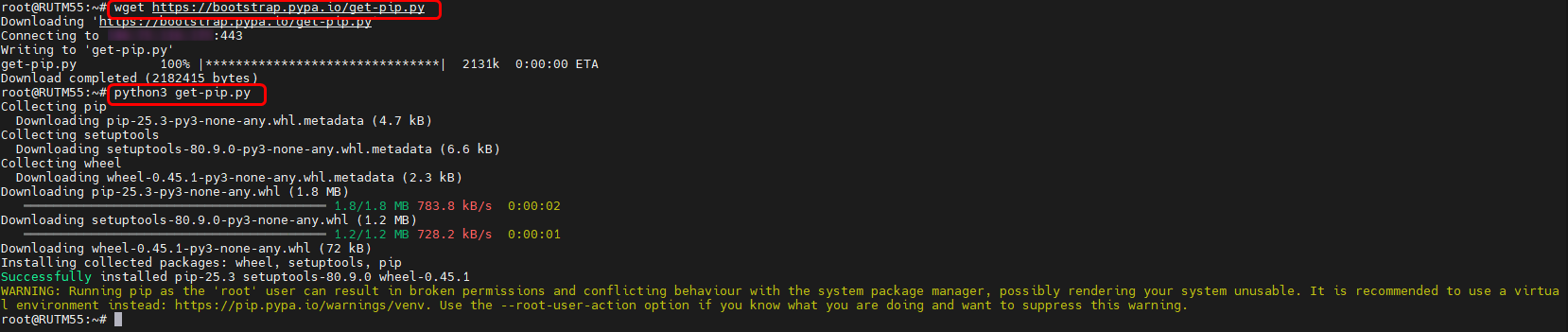
After completion, your device will have pip package manager ready to use.
Setting up a virtual environment
When using python or PIP, you may encounter the following warning:

If virtual environments are required, install and use virtualenv as a substitute for the venv module, as our Python package does not include venv by default. Run the following commands to install virtualenv and set up the virtual environment:
pip install virtualenvpython3 -m virtualenv venv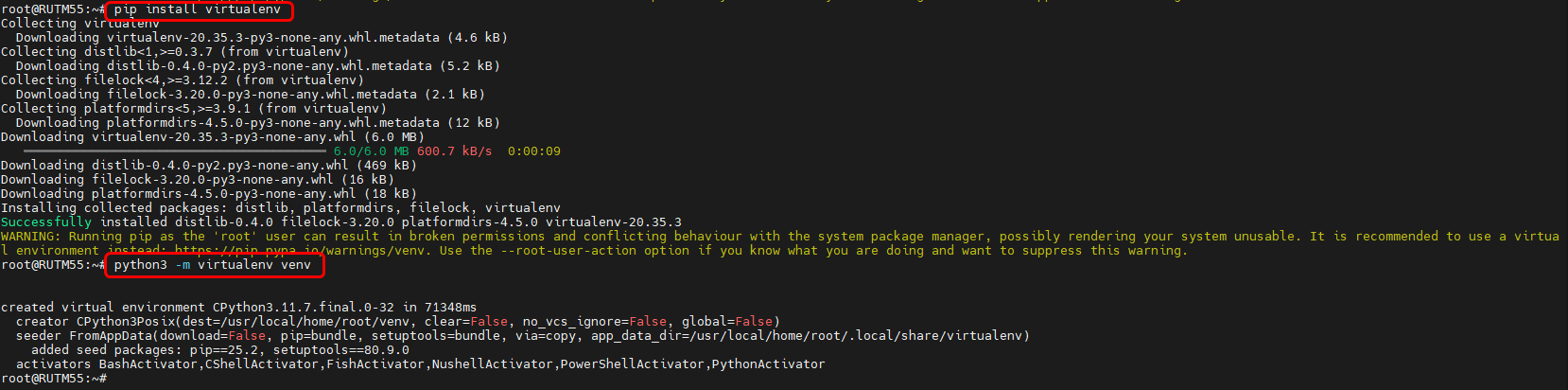
Summary
To confirm that Python is installed and functioning on your device, you can create and run a simple test script. For example, create a basic script using the following command:
echo 'print("Hello World from python!")' > test.pyThen execute the script with Python3:
python3 test.pyYou should see the successful Hello World message: